

Google Calendar Slack Integration: Sync Calendar Events and Rotations to Slack
How to connect Google Calendar and Slack with Pagerly: shared calendar events, on-call rotations, reminders, overrides and Slack user groups, all managed in Slack.
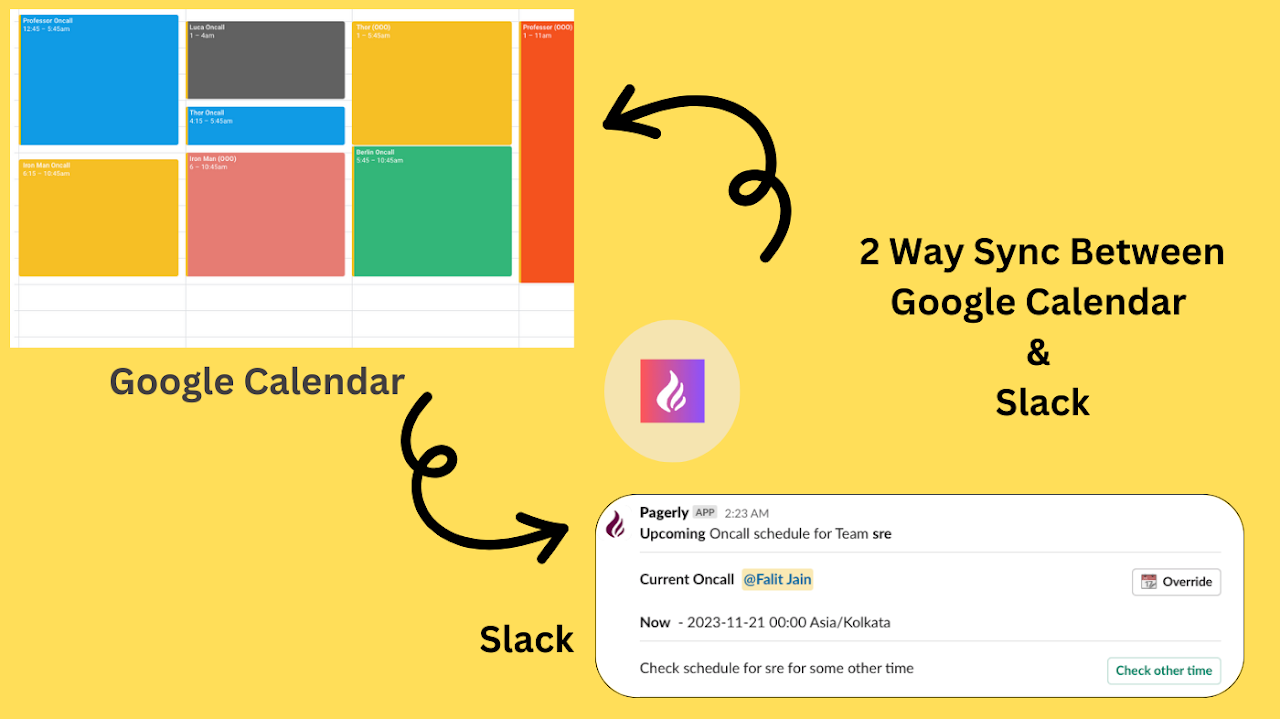
A Google Calendar Slack integration lets your team see and manage a shared calendar - events, on-call shifts, rotations, PTO - without leaving Slack. With Pagerly the sync runs both ways: the calendar drives who is on duty in Slack, and changes made in Slack flow back to the schedule. For the product page, see Google Calendar rotation on Slack.
The Problem with Calendar Rotations in Slack
Teams often keep rotations in a shared Google Calendar, but the calendar and Slack don't talk to each other. That makes it hard to cope with changing schedules or availability, leads to scheduling conflicts and overlooked shifts, and - without real-time updates or notifications - rotations get missed and people end up asking in Slack who is on duty today.
Use Cases
- On-call management
- Meeting and event notifications
- Slack status synced with Google Calendar events
- Team availability and status updates
- Vacation and PTO scheduling
- Project deadline tracking
What the Integration Does
See Your Team's Schedule in Slack
View your team's daily schedule and upcoming events from the Pagerly home tab or a Slack channel, with clear event details, instead of switching apps. Team members' schedules come together in one view.
Create and Edit Events Without Leaving Slack
Create a new event, reschedule, reassign or override a shift from Slack - desktop or mobile - and it is written to your Google Calendar account. Slack commands give quick access to schedules and reminders.
Reminders and Notifications
Set reminders for upcoming shifts, meetings and deadlines, choose your notification preferences, and have Pagerly update the channel topic with the current rotation when a new one begins.
Slack Status Updates
Pagerly can update Slack status automatically from calendar events, so availability and on-call shifts are visible on people's profiles.
Sync a Slack User Group with the Rotation
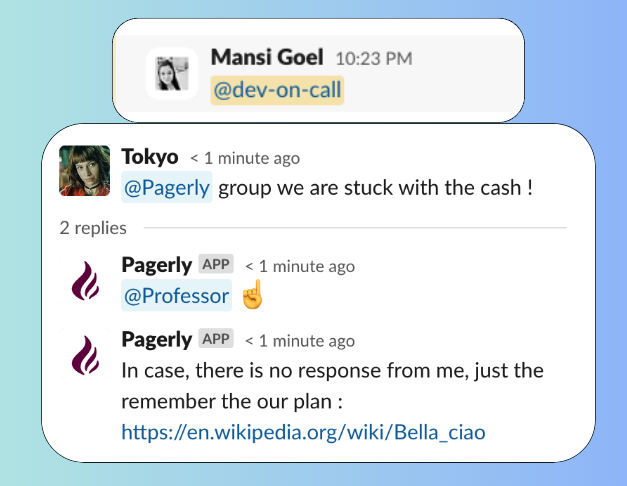
Pagerly keeps a Slack user group equal to whoever is currently on duty in the calendar rotation, so anyone can tag, say, @support-oncall and reach the right person. You can also mention the current rotation in any message or thread.
Customise and Override the Schedule
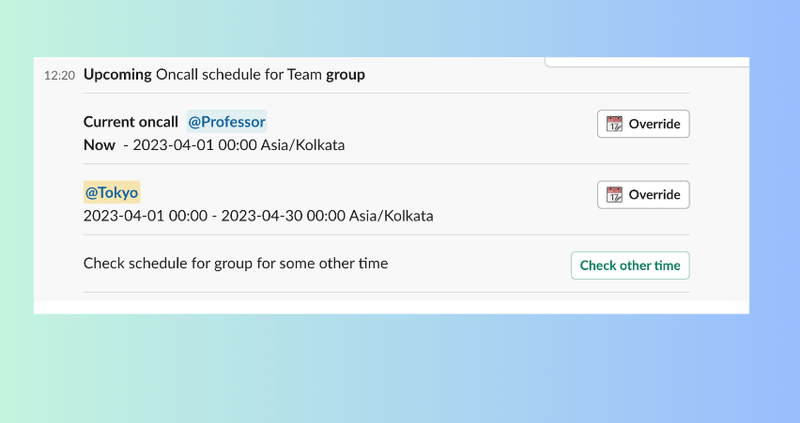
Adjust your Google Calendar rotation with an override in Slack - no need to open Google Calendar. Emergency swaps and last-minute PTO are handled in a click.
For example:
- Vacation override: someone is on holiday, so you reassign their on-call shift to a teammate from Slack.
- On-call swap: a teammate has an emergency and swaps their shift with someone available.
- Rotation change: when a new rotation starts, Pagerly updates the channel topic and sends a Slack notification.
Link Opsgenie and PagerDuty Rotations
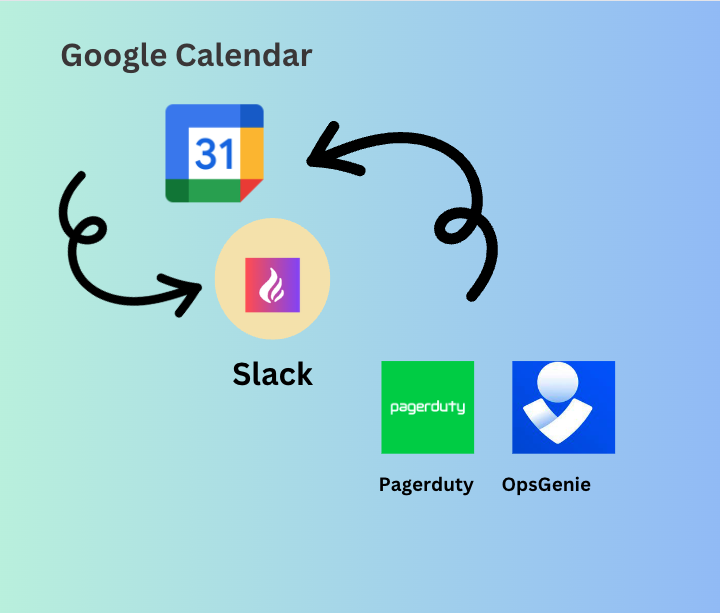
If some of your rotations live in Opsgenie or PagerDuty, Pagerly can show those alongside the calendar, so every schedule is visible from Slack. See the PagerDuty Slack integration and Opsgenie Slack integration.
Workflows, Tasks and Notes
Start workflows in a few clicks, keep a single task view for the team, and capture notes to share knowledge - all from the same Slack app.
How to Connect Google Calendar with Slack
- Install Pagerly from the Slack App Directory. You need permission to install apps in your workspace.
- Connect your Google Calendar account: open the Pagerly home tab in Slack, click "Connect Google Calendar", sign in and grant the permissions requested through Google's OAuth flow. Use a Google account that can manage the schedule.
- Choose the shared calendar for your team - the one that holds on-call shifts, rotations and team events.
- View the rotation in Slack: use Slack commands or the Pagerly app to see the Google Calendar rotation, and Pagerly will keep the channel topic updated with the current on-call.
How to Find Your Google Calendar ID
To link a calendar to a Pagerly team you need its Calendar ID:
- Open Google Calendar in your browser.
- In the left sidebar, find the calendar under your personal or shared calendars and open its menu.
- Click Settings.
- Scroll to Integrate calendar and copy the Calendar ID - usually an email address or a long string of characters.
- In Pagerly, go to Setup Team Access and enter the Calendar ID.
Your Google Calendar is now connected: rotations, on-call schedules and upcoming events are managed in Slack, with notifications and status updates handled for you.