

How to Set Up Work Rotations on Google Calendar
How to set up work rotations on Google Calendar manually and how to automate calendar sync with Pagerly for on-call and support rotations.
How to Set Up Work Rotations on Google Calendar
Google Calendar is where most employees already track their work schedule. When your team's rotation schedule lives in a separate tool that does not connect to Google Calendar, engineers and managers have to check two places to understand who is responsible for what and when. Scheduling conflicts happen. Rotation shifts get missed.
Setting up work rotations in Google Calendar gives every team member visibility into the rotation schedule in the tool they already use. When a rotation shift appears on someone's calendar alongside their meetings and personal commitments, they plan around it.
This guide covers how to set up different types of work rotations in Google Calendar, the limitations of the manual approach, and how to automate rotation-to-calendar sync for teams that need it to stay current without ongoing maintenance.
Types of Work Rotations That Belong in Google Calendar
- On-call rotations: Engineering and DevOps teams where a specific engineer is responsible for responding to incidents during a defined window
- Support rotations: Customer-facing teams where responsibility for handling support tickets rotates through team members
- Shift work schedules: Teams with defined shift patterns where employees need to see their upcoming shifts
- Task-based rotations: Engineering teams where responsibilities like PR review or deployment ownership rotate through members
- Meeting facilitation rotations: Teams where running the standup or retrospective rotates each sprint
Setting Up a Work Rotation in Google Calendar: Step by Step
Step 1: Create a Dedicated Rotation Calendar
Click the plus icon next to "Other calendars" in the left sidebar, select "Create new calendar," and name it clearly such as "SRE On-Call Rotation" or "Support Rotation." Using a dedicated shared calendar keeps rotation events separate from personal calendars.
Step 2: Share the Calendar with the Team
Open the calendar's settings and share with each team member. Set permission to "See all event details." For teams using Google Workspace, share with a Google Group so new team members get access automatically.
Step 3: Create Recurring Events for Each Team Member's Rotation
For a weekly rotation with four team members, create four separate recurring events. Set each to repeat every four weeks (since each person rotates once every four weeks), offsetting each by one week from the previous.
Step 4: Add Team Members as Guests on Their Own Events
Add the relevant team member as a guest so the event appears on their personal Google Calendar. They will receive Google Calendar reminder notifications before their rotation begins.
Step 5: Configure Event Reminders
Add a 24-hour email reminder and a one-hour notification before each shift. For on-call rotations, pairing with a Slack-based reminder system adds a second channel more likely to be seen immediately.
Handling Shift Swaps and Schedule Changes
When a team member needs to swap a shift, the process involves: requesting the swap, finding coverage, manually updating calendar events, notifying the team, and updating any other systems. Each step is a potential failure point. If alert routing tools are not updated alongside the calendar, alerts still go to the original engineer.
Limitations of Manual Google Calendar Rotation Management
- No automatic alert routing: Google Calendar knows who is on rotation, but monitoring tools do not
- Swap management is entirely manual
- New team members require manual onboarding
- No self-service for team members
- Pattern changes require rebuilding all events
- Google Calendar is a view, not a system of record
Automating Work Rotation Sync with Pagerly
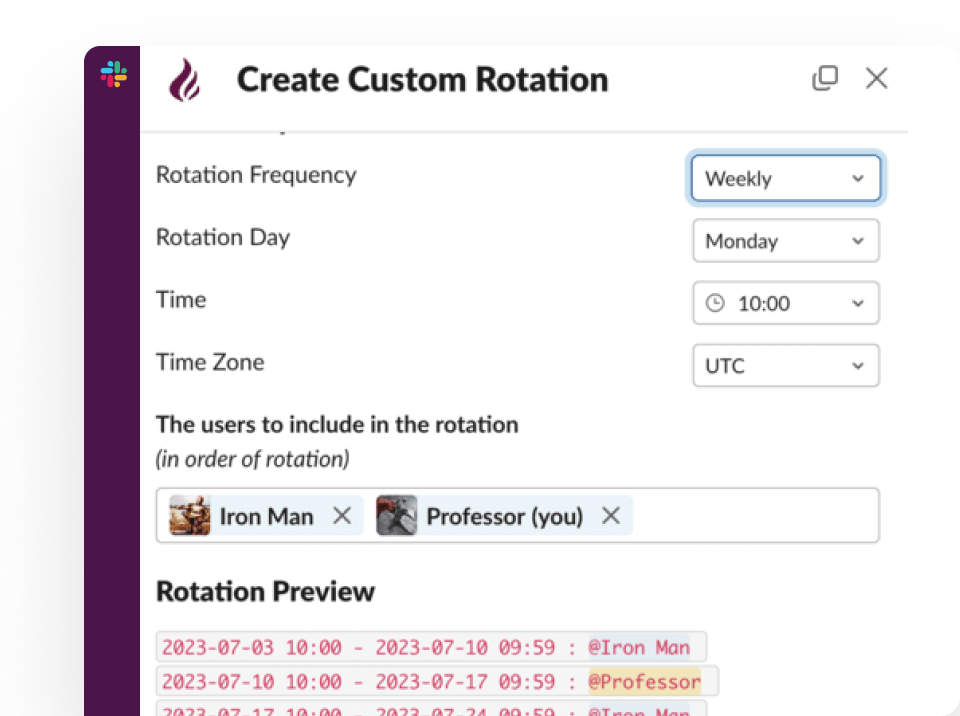
Pagerly's Google Calendar integration automates the sync between your rotation schedule and Google Calendar. The rotation is managed in Pagerly within Slack, and Google Calendar is kept current automatically. When a team member swaps a shift, when the rotation pattern changes, or when a new team member joins the rotation, Google Calendar updates without any manual intervention.
How the integration works:
- Pagerly writes rotation shift events directly to your designated Google Calendar using your calendar ID
- Every on-call or rotation shift appears in Google Calendar as a calendar event with the responsible team member's name
- When a shift swap is approved through Pagerly's cover request system in Slack, Google Calendar updates immediately
- When the rotation pattern is changed in Pagerly, all future calendar events update automatically
- Team members receive Google Calendar reminders for their own upcoming shifts in addition to Pagerly's Slack-based shift reminders at 6 hours, 12 hours, and 1 day before the shift
- Managers and teammates can view the complete rotation schedule in Google Calendar without accessing the Pagerly dashboard
Best Practices for Work Rotation Calendars
1. Use a shared team calendar, not personal calendars.
2. Keep Google Calendar as a view, not the source of truth. The rotation schedule should be defined in your on-call tool. Google Calendar should reflect that schedule, not be the place where changes are made.
3. Use distinct calendar colors for different rotation types.
4. Include handover context in event descriptions. Add links to runbooks, escalation contacts, and the current system health dashboard.
5. Review the rotation calendar in team planning meetings.
Ready to keep your work rotation synced to Google Calendar automatically? Pagerly manages your rotation in Slack and keeps Google Calendar current with no manual effort. Get started free