

How to Add On-Call Rotations to Google Calendar
How to add on-call rotations to Google Calendar manually and how to automate the sync with Pagerly for always-current on-call visibility across your team.
How to Add On-Call Rotations to Google Calendar
Your on-call rotation lives in a scheduling tool or a spreadsheet. Your engineers' actual work schedules live in Google Calendar. When these two systems do not talk to each other, engineers are constantly context-switching to figure out who is on-call and when. They miss shift reminders. They schedule personal appointments during on-call windows. And handovers get messy because nobody has a single place to see the full picture.
Syncing your on-call rotation to Google Calendar solves these problems by giving every team member visibility into the on-call schedule in the tool they already use for everything else. When an engineer's on-call window appears on their personal calendar alongside their meetings and commitments, they plan differently. Coverage gaps become visible before they happen.
This guide covers how to add on-call rotations to Google Calendar: the manual approach for small teams, the limitations, and how to use Pagerly to automate the sync with no ongoing maintenance.
Why On-Call Rotations Belong in Google Calendar
Most engineers live in Google Calendar. When on-call shifts do not appear there, they exist in a separate mental model that engineers have to consciously consult. Practical consequences include:
- Scheduling conflicts: Engineers schedule flights and personal appointments over on-call windows because they did not check the on-call schedule first
- Missed context: Managers scheduling meetings do not know who is on-call and over-schedule the on-call engineer
- Reduced transparency: Team members cannot easily see who is on-call without checking a separate tool
- Poorer handovers: Incoming on-call engineers who can see their shift on their calendar plan their day differently
Method 1: Manually Adding On-Call Shifts to Google Calendar
Step 1: Create a Shared Team Calendar
In Google Calendar, click the plus icon next to "Other calendars," select "Create new calendar," and name it clearly like "SRE On-Call" or "Engineering On-Call." Share this calendar with all team members with "See all event details" permission.
Step 2: Create Recurring Events for Each Engineer's Shifts
For a weekly rotation with four engineers, create four separate recurring events. Set each to repeat every four weeks, with a one-week offset between engineers.
Step 3: Add Engineers as Guests
Add the relevant engineer as a guest on their events so the shift appears on their personal Google Calendar. They will receive Google Calendar reminders before their on-call window.
Step 4: Configure Calendar Reminders
Add a 24-hour advance reminder and a 1-hour reminder before each shift. Google Calendar supports email and push notification reminders.
Limitations of the Manual Approach
- Shift swaps require manual updates: When engineers swap shifts, someone must manually update Google Calendar, update the on-call tool, and notify the team. If any step is missed, the calendar is out of sync
- New engineers are not automatically added: All future recurring events need manual adjustment
- No connection to alert routing: Google Calendar knows who is on-call but your monitoring system and Slack do not
- Rotation changes require rebuilding events: Changing from weekly to bi-weekly means deleting and recreating all recurring events
- No connection to escalation policies: Google Calendar shows the schedule but does not integrate with your on-call management tool
Method 2: Automated Google Calendar Sync with Pagerly
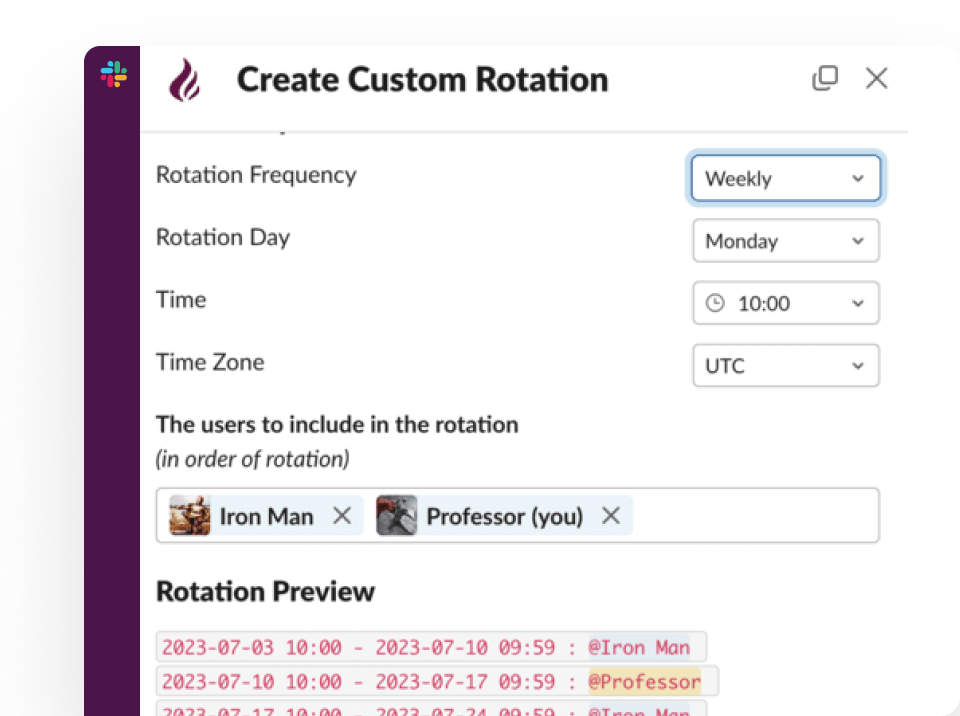
Pagerly's Google Calendar integration automates the entire sync process. When you configure a rotation in Pagerly, the schedule automatically appears in Google Calendar. When the rotation changes, when engineers swap shifts, or when a new team member joins, Google Calendar updates automatically. No manual maintenance required.
What happens automatically:
- Every on-call shift appears in Google Calendar as a calendar event with the on-call engineer's name
- When a shift swap is approved through Pagerly's cover request system in Slack, Google Calendar updates immediately
- When the rotation pattern changes in Pagerly, all future calendar events update to reflect the new schedule
- Engineers receive Google Calendar reminders for upcoming shifts in addition to Pagerly's Slack-based reminders at 6 hours, 12 hours, and 1 day before the shift
- Managers and team members can see the full on-call schedule without needing access to the Pagerly dashboard
Setting Up the Integration
The setup in Pagerly requires your Google Calendar ID, found in Google Calendar's settings under "Integrate calendar." Once connected, select which rotation schedules should sync and how far in advance events are written. Pagerly handles all subsequent updates automatically.
Google Calendar vs. Slack for On-Call Visibility
| Use Case | Best Tool | Why |
|---|---|---|
| Seeing your own upcoming on-call shifts | Google Calendar | Engineers plan personal commitments around their calendar |
| Checking who is on-call right now | Slack (Pagerly lookup) | Faster than navigating to a calendar during an incident |
| Planning meetings without over-scheduling on-call engineers | Google Calendar | Managers see on-call shifts in scheduling views |
| Receiving a shift reminder | Both (Slack and Calendar) | Redundant reminders reduce the chance of a missed shift |
| Requesting a shift swap | Slack (Pagerly cover request) | Self-service swap in Slack automatically updates Google Calendar |
| Routing alerts to the current on-call engineer | Slack (Pagerly usergroup sync) | Google Calendar does not route alerts; Pagerly does |
Best Practices for On-Call Calendar Management
1. Use a dedicated shared calendar, not personal calendars. A shared on-call calendar gives everyone visibility without requiring access to individual engineers' personal calendars.
2. Keep Google Calendar as a view, not a source of truth. The on-call management tool should be authoritative. Google Calendar should reflect that schedule, not define it.
3. Connect your calendar sync to your alert routing. A calendar that knows who is on-call but cannot route alerts is only half useful.
4. Review the calendar at each team planning meeting. Making on-call schedules visible is most valuable when the team actively uses that visibility.
Ready to sync your on-call rotations to Google Calendar automatically? Pagerly manages your rotation in Slack and keeps Google Calendar up to date with no manual effort. Get started free