

How to Assign Tasks to Slack Alerts Channels Guide
Every method for assigning tasks and ownership to alerts in Slack channels: from manual mentions to Pagerly's automated on-call routing, emoji-triggered tickets, and round-robin assignment.
How to Assign Tasks to Slack Alerts Channels Guide
An alert fires in your Slack alerts channel. It sits there for four minutes while three engineers each assume someone else is going to respond. Nobody owns it. Nobody creates a ticket. By the time someone acts, the incident has escalated.
This is the accountability gap that unstructured Slack alert channels create. Visibility without assignment is not enough. When an alert arrives in a Slack channel, there needs to be a clear, automatic process for who is responsible for it, what they are expected to do, and how that responsibility gets tracked.
This guide covers every method for assigning tasks and ownership to alerts in Slack channels: from Slack's native tools to automated workflows using Pagerly.
The Problem with Unassigned Slack Alerts
Engineering teams have dedicated Slack channels where monitoring alerts arrive. The problem is that visibility without assignment creates the bystander effect. The symptoms include:
- Alerts that are seen but not acknowledged, leading to delayed incident response
- Duplicate work when multiple engineers start investigating the same alert simultaneously
- No audit trail for which alerts were investigated, by whom, and what was found
- No connection between alerts and tickets
- Alert fatigue causing engineers to tune out all notifications
Method 1: Manual Assignment with Slack Mentions
When an alert arrives, a team member assigns it by mentioning another engineer in a thread reply. This works for very small teams with low alert volume. Limitations:
- Requires someone to actively monitor and manually assign each alert
- Creates no trackable record beyond the Slack thread itself
- Breaks down during off-hours
- Does not connect to Jira, PagerDuty, or any incident tracking system
- Introduces delay between alert firing and assignment
Method 2: Slack's Native Workflow Builder
Workflow Builder allows workflows that trigger on new channel messages. Limitations:
- The designated responder is static: always goes to the same person regardless of who is on-call
- No rotation awareness
- No automatic escalation if the assigned person does not respond
- No Jira or PagerDuty integration
Method 3: Emoji-Triggered Task Creation with Pagerly
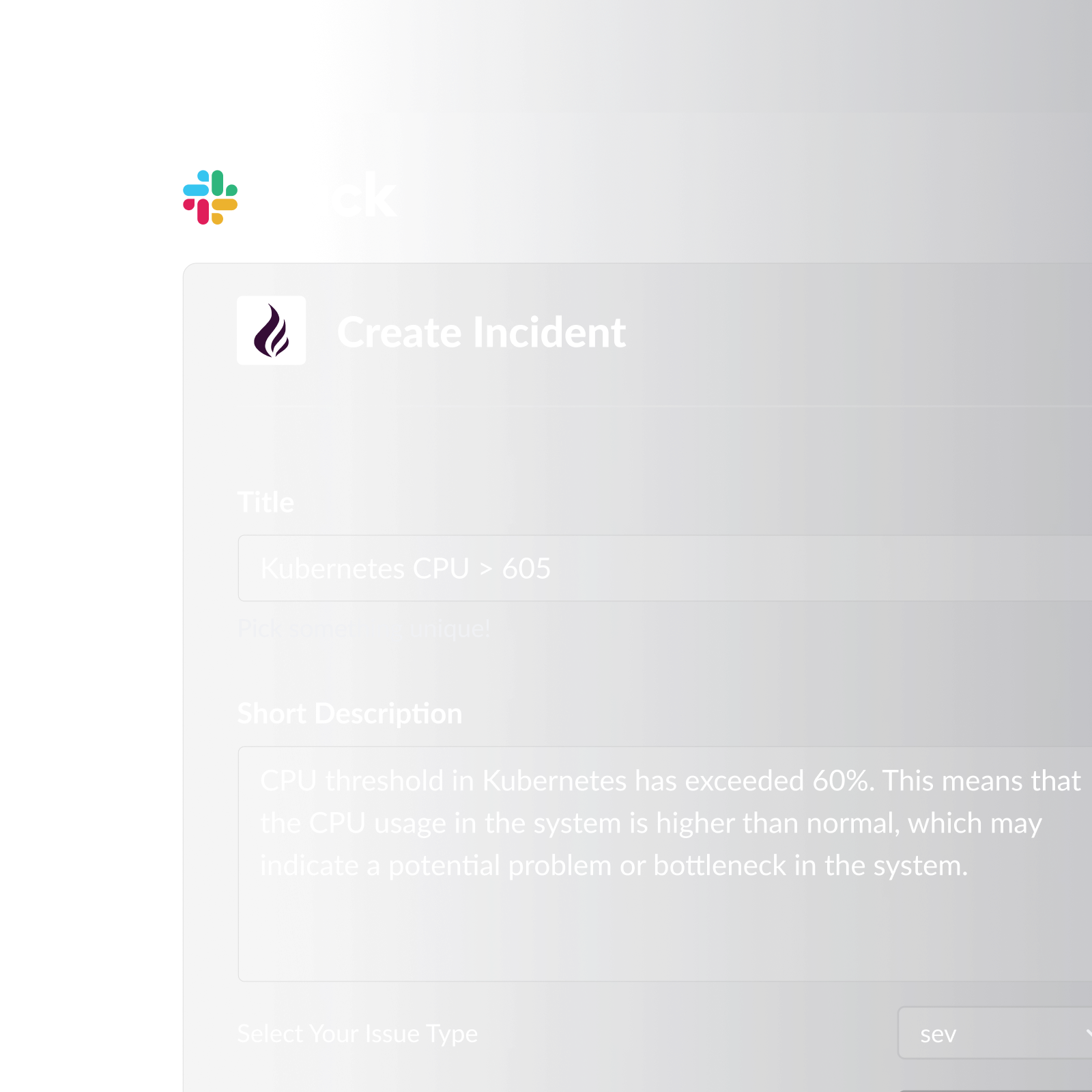
Pagerly enables emoji-triggered task and incident creation directly from Slack alert channels. When an alert arrives, any team member can react with a configured emoji and Pagerly automatically creates a Jira ticket, PagerDuty incident, or OpsGenie alert from that message. The created ticket is automatically linked back in a thread reply.
How it works:
- An alert fires in your Slack alerts channel
- The on-call engineer reacts with the configured emoji
- Pagerly creates a Jira ticket with the alert details pre-populated
- A thread reply confirms the ticket was created and includes the ticket URL
- The ticket is automatically assigned to the on-call engineer in Jira
- Any subsequent updates in Jira sync back to the Slack thread via two-way sync
Method 4: Automatic Round-Robin Task Assignment with Pagerly
For high-volume alert channels, Pagerly supports round-robin assignment of incoming alerts across team members. Each new alert goes to the next person in the rotation, ensuring equitable distribution and immediate accountability.
Key features:
- Automatic assignment of incoming Slack alerts to the next person in the round-robin rotation
- Slack notification to the assigned team member with the alert details and a direct link
- Automatic Jira ticket creation with the assigned engineer as the assignee
- Escalation if the assigned engineer does not acknowledge within your defined window
- Full audit trail in both Slack and Jira
Method 5: On-Call Routing for Alert Channel Ownership
For alert channels monitored by whoever is currently on-call, Pagerly's on-call routing ensures every alert is automatically directed to the current on-call engineer, not a static recipient list. The Slack usergroup @sre-on-call is kept in sync with the current rotation, so any team member can tag @sre-on-call and know it reaches the right person.
Comparing Task Assignment Methods for Slack Alert Channels
| Method | Automation Level | Rotation-Aware | Jira Integration | Escalation |
|---|---|---|---|---|
| Manual @mentions | None | No | No | No |
| Slack Workflow Builder | Partial | No | No | No |
| Pagerly emoji triggers | High (one emoji reaction) | Yes | Yes | Yes |
| Pagerly round-robin | Full (automatic) | Yes | Yes | Yes |
| Pagerly on-call routing | Full (automatic) | Yes | Yes | Yes |
Best Practices for Alert Channel Task Assignment in Slack
1. Never rely on a shared channel for accountability. A Slack channel is a place for visibility. Accountability requires individual assignment. Every alert should resolve to a specific person who owns it.
2. Connect alert assignment to your ticket tracking system. Slack threads are not reliable incident tracking. Every assigned alert should generate a Jira ticket or equivalent record.
3. Use rotation-aware routing, not static assignment. Rotation-aware routing ensures alerts always reach the engineer who is actually responsible at that moment.
4. Set escalation windows for every assignment. If the assigned engineer does not acknowledge within a defined window, automatic escalation should engage the backup.
5. Audit your alert volume regularly. High alert volume is itself a signal. Alert tuning and deduplication should happen alongside any assignment workflow improvements.
6. Link runbooks from assigned alerts. The moment an alert is assigned, the assigned engineer should have access to the relevant runbook. Pagerly's automated responses include runbook links directly in the assignment notification.
Ready to eliminate the accountability gap in your Slack alert channels? Pagerly routes alerts to the right on-call engineer automatically, creates Jira tickets with a single emoji reaction, and escalates if nobody responds. Get started free