

Google Calendar Slack Integration: Sync Calendar Events and Rotations to Slack
How to connect Google Calendar and Slack with Pagerly: shared calendar events, on-call rotations, reminders, overrides and Slack user groups, all managed in Slack.
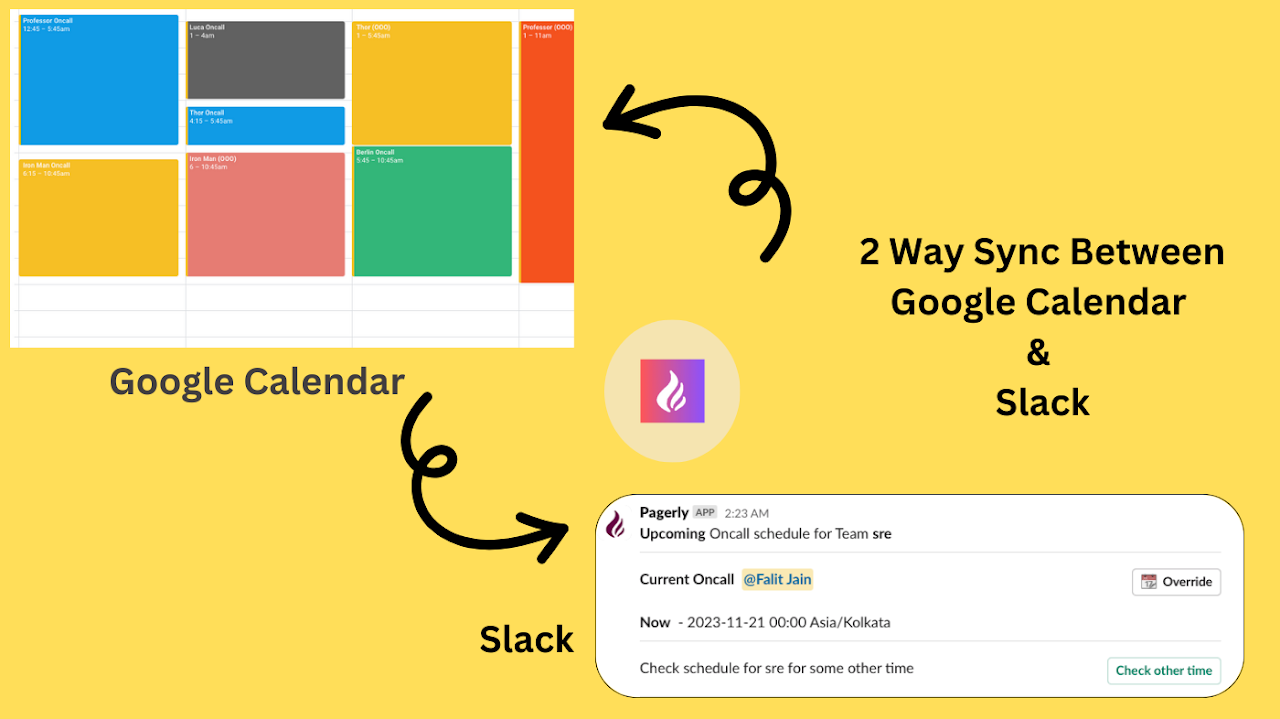
A Google Calendar Slack integration lets your team see and manage a shared calendar - events, on-call shifts, rotations, PTO - without leaving Slack. With Pagerly the sync runs both ways: the calendar drives who is on duty in Slack, and changes made in Slack flow back to the schedule. For the product page, see Google Calendar rotation on Slack.
The Problem with Calendar Rotations in Slack
Teams often keep rotations in a shared Google Calendar, but the calendar and Slack don't talk to each other. That makes it hard to cope with changing schedules or availability, leads to scheduling conflicts and overlooked shifts, and - without real-time updates or notifications - rotations get missed and people end up asking in Slack who is on duty today.
Use Cases
- On-call management
- Meeting and event notifications
- Slack status synced with Google Calendar events
- Team availability and status updates
- Vacation and PTO scheduling
- Project deadline tracking
What the Integration Does
See Your Team's Schedule in Slack
View your team's daily schedule and upcoming events from the Pagerly home tab or a Slack channel, with clear event details, instead of switching apps. Team members' schedules come together in one view.
Create and Edit Events Without Leaving Slack
Create a new event, reschedule, reassign or override a shift from Slack - desktop or mobile - and it is written to your Google Calendar account. Slack commands give quick access to schedules and reminders.
Reminders and Notifications
Set reminders for upcoming shifts, meetings and deadlines, choose your notification preferences, and have Pagerly update the channel topic with the current rotation when a new one begins.
Slack Status Updates
Pagerly can update Slack status automatically from calendar events, so availability and on-call shifts are visible on people's profiles.
Sync a Slack User Group with the Rotation
Pagerly keeps a Slack user group equal to whoever is currently on duty in the calendar rotation, so anyone can tag, say, @support-oncall and reach the right person. You can also mention the current rotation in any message or thread.
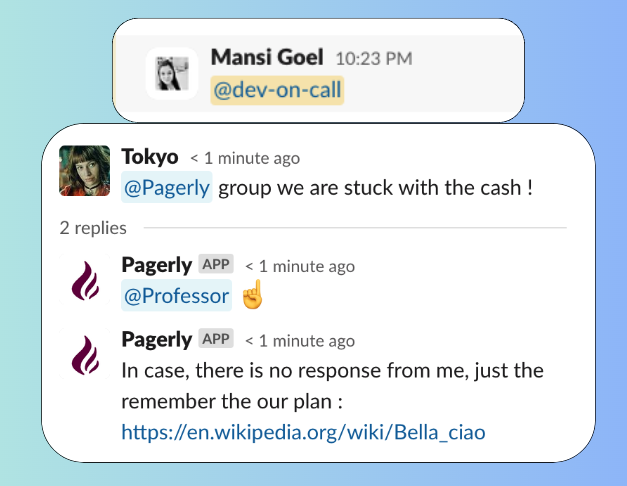
Customise and Override the Schedule
Adjust your Google Calendar rotation with an override in Slack - no need to open Google Calendar. Emergency swaps and last-minute PTO are handled in a click.
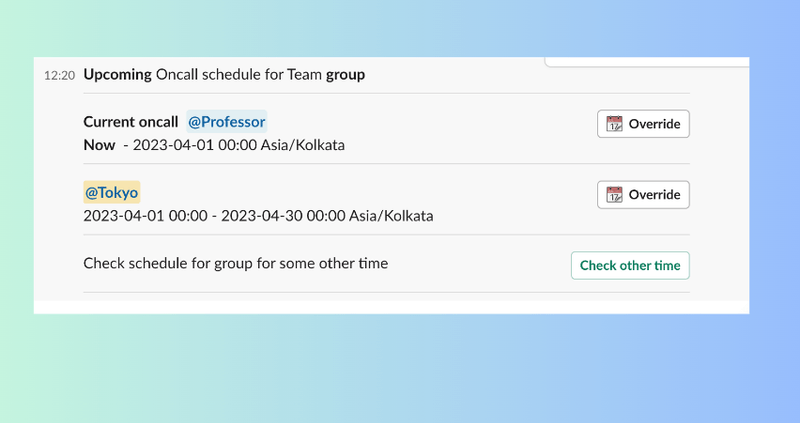
For example:
- Vacation override: someone is on holiday, so you reassign their on-call shift to a teammate from Slack.
- On-call swap: a teammate has an emergency and swaps their shift with someone available.
- Rotation change: when a new rotation starts, Pagerly updates the channel topic and sends a Slack notification.
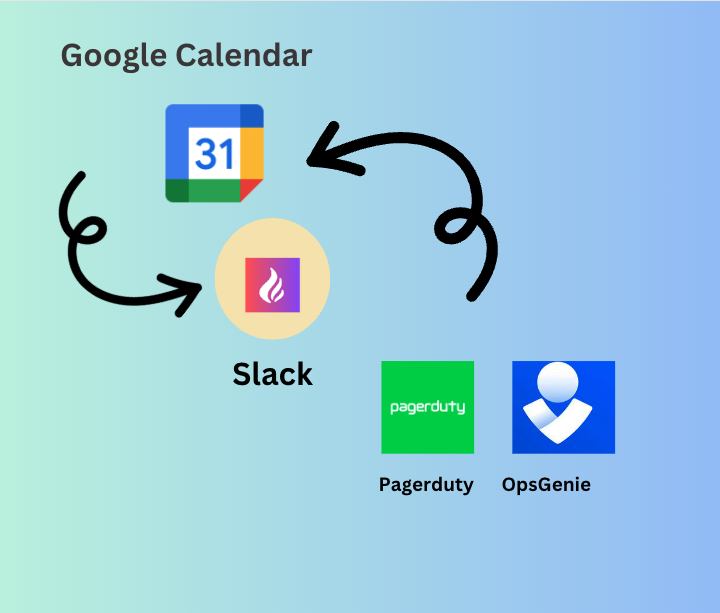
Link Opsgenie and PagerDuty Rotations
If some of your rotations live in Opsgenie or PagerDuty, Pagerly can show those alongside the calendar, so every schedule is visible from Slack. See the PagerDuty Slack integration and Opsgenie Slack integration.
Workflows, Tasks and Notes
Start workflows in a few clicks, keep a single task view for the team, and capture notes to share knowledge - all from the same Slack app.
How to Connect Google Calendar with Slack Using Pagerly
- Install Pagerly from the Slack App Directory. You need permission to install apps in your workspace.
- Connect your Google Calendar account: open the Pagerly home tab in Slack, click "Connect Google Calendar", sign in and grant the permissions requested through Google's OAuth flow. Use a Google account that can manage the schedule.
- Choose the shared calendar for your team - the one that holds on-call shifts, rotations and team events.
- View the rotation in Slack: use Slack commands or the Pagerly app to see the Google Calendar rotation, and Pagerly will keep the channel topic updated with the current on-call.
How to Connect Google Calendar to Slack with Slack's Own App
Slack has its own free Google Calendar app, and it is the right tool if you only want your personal calendar in Slack. These steps follow Slack's help article:
- Install the app. One workspace member opens the Google Calendar listing in the Slack Marketplace, clicks Add to Slack, then Allow.
- Connect your Google account. On desktop, open Agents & tools in the sidebar, select Apps, open Google Calendar, and on its Home tab click Connect an account. Every member does this step for themselves.
- Choose your calendars. In the app's Home tab, click Connect calendar, pick a calendar under Accounts, add any others, and click Done.
You then get event reminders, RSVP from Slack and an automatic "In a meeting" or "Out of Office" status. Status sync only works for your primary calendar.
How to Add Google Calendar to a Slack Channel
People searching for this usually want one of two different things:
- Share one event in a channel. When you create an event in Slack's Google Calendar app on desktop, tick Share this meeting with and choose the channel or DM.
- Keep a whole team calendar visible in a channel. Slack retired its separate Google Calendar for Team Events app on 10 September 2024, and its retirements page says the Google Calendar app took over channel and team calendar notifications. For a shared schedule such as a rotation, Pagerly reads the shared calendar and keeps the channel topic and a Slack user group equal to whoever is on duty.
"This Channel Will Stop Receiving Notifications from the Linked Calendar"
People are searching for this exact notice, which says a channel will stop receiving notifications from its linked calendar starting December 15th, 2026, that linking a calendar to a channel is being retired, and that you should connect your own calendar to Slack to keep getting meeting reminders.
As of 9 November 2026 we could not find this change on Slack's retirements page or in its Google Calendar help article, so check with your Slack admin or Slack support for the details. If your channel shows the notice, these are the sensible steps:
- For your own meetings: follow the three steps above. Each person connects their own calendar, because reminders then arrive per person instead of in the channel.
- For anything the whole channel relied on: write down what the linked calendar was doing, such as shift changes, team events or PTO, and decide who still needs it before the date in the notice.
- For rotations and on-call shifts: a personal connection does not tell the channel who is on duty. Use a tool that reads the shared calendar, such as Pagerly's Google Calendar rotation on Slack.
Slack's Google Calendar App vs Pagerly
| You want | Slack's Google Calendar app | Pagerly |
|---|---|---|
| Reminders for your own meetings | Yes | Shifts, meetings and deadlines you set up |
| Status set from your calendar | Yes, primary calendar only | Yes |
| Channel topic showing who is on duty | No | Yes |
| Slack user group that follows a rotation | No | Yes |
| Override or swap a shift from Slack | No | Yes |
You can use both: Slack's app for personal meetings and Pagerly for the shared schedule. If your rota lives in a spreadsheet instead, see on-call schedules in Google Sheets.
How to Find Your Google Calendar ID
To link a calendar to a Pagerly team you need its Calendar ID:
- Open Google Calendar in your browser.
- In the left sidebar, find the calendar under your personal or shared calendars and open its menu.
- Click Settings.
- Scroll to Integrate calendar and copy the Calendar ID - usually an email address or a long string of characters.
- In Pagerly, go to Setup Team Access and enter the Calendar ID.
Your Google Calendar is now connected: rotations, on-call schedules and upcoming events are managed in Slack, with notifications and status updates handled for you.
Google Calendar and Slack FAQ
Can I connect Google Calendar to Slack for free?
Yes. Slack's Google Calendar app can be added from the Slack Marketplace, and its daily schedule notification is limited to paid Slack subscriptions.
Why is my Slack status not changing with my calendar?
Status sync only uses your primary calendar and only events you accepted or marked Busy. Slack also will not override a status you set yourself, and overlapping events do not update it. For the full setup and every common fix, see how to sync Slack status with Google Calendar.
Who has to install the Google Calendar app?
One person installs it for the workspace. After that, each member connects their own Google account and chooses their calendars.